Learn how to reserve Microsoft Fabric capacity, avoid mistakes, save up to 40%, and choose the best region. Step-by-step expert guide.
Microsoft Fabric introduces a new capacity reservation model that allows you to reserve dedicated resources for your workloads. However, the configuration process is not trivial, and an uninformed choice can limit functionality, create inefficiencies or prevent the expected savings.
After helping multiple companies deploy Microsoft Fabric, at Bismart we have detected a series of common mistakes that are repeated and generate avoidable cost overruns.
In this article we explain everything you need to know before reserving capacity: pricing, key steps, recommended regions and tricks that only experts know.
- How to book capacity in Fabric step by step
- Which Azure region to choose based on your environment
- How much you can save with reservations vs. the PAYG model
- And what aspects you should consider to optimize its use from day one
If you're evaluating Microsoft Fabric adoption or need clarity before you book, this content is for you.
How Does Microsoft Fabric Capacity Model Work?
Microsoft Fabric Capacity Model Explained
Microsoft Fabric uses Capacity Units (CUs) to allocate compute resources. You can acquire these on a Pay-As-You-Go (PAYG) basis or through annual reservations. Unlike older models, Fabric licensing is based on capacity, not per user.
By reserving capacity, you guarantee 24/7 dedicated resources, ideal for stable, high-demand workloads.
Key Fact: Microsoft states you can save up to 40.5% by reserving capacity versus PAYG.
What is a Fabric Capacity?
A Fabric capacity is a dedicated unit of resources in Microsoft Fabric that guarantees performance, scalability and isolation for running workloads.
By reserving a capacity, you secure a specific set of compute resources (such as an F2, F4, etc.) for your organization, allowing you to run analytics, data integration, business intelligence and data science services without relying on shared resources.
Pay-as-you-go vs. Microsoft Fabric Reservation: Which Model is Right for You?
Key Differences Between PAYG and Annual Reserve
As stated in the official Microsoft Fabric documentation, by default, Fabric capacities are billed under the Pay-As-You-Go (PAYG) model, which means you pay for capacity by the hour and can scale or pause it when you don't need it.
When you reserve a capacity (for example, an F64 or F32), you are saying to Microsoft:
"I want to have this computing power available 24 hours a day, 365 days a year."
The standby ensures that that capacity is always on and available for your workloads, without relying on on-demand consumption or worrying about turning services off or on. This is ideal for corporate environments where availability and stability are a priority.
According to Microsoft, reserving Fabric capacity can reduce your bill by up to 40.5%.
Real Savings by Reserving Capacity on Microsoft Fabric
How Much Can You Save with Capacity Reservations?
You can save up to 40.5% of the total cost by committing to a 1-year capacity reservation instead of using the pay-as-you-go model. The reservation turns the variable cost into a predictable and lower monthly payment, ideal for stable and continuous loads. In addition, by combining this model with a strategic choice of region, savings can be increased.
- You may also be interested in: How to Reduce Power BI Licensing Costs?
PAYG vs. Reserve Pricing Comparison Table
The following table illustrates the pricing of various F-SKU capacities in one region (Western Europe), comparing pay-as-you-go costs versus 1 year reserved:
|
SKU |
CUs |
PAYG monthly (West Europe) |
Booked 1 year monthly |
Estimated savings |
|
F2 |
2 |
$262.80 |
$156.33 |
~40.5 % |
|
F64 |
64 |
$8,409.60 |
$5,003.76 |
~40.5 % |
Comparative table showing Microsoft Fabric capacity SKUs, their capacity units and Microsoft Fabric prices in the Western Europe region for Pay-As-You-Go vs. 1 year reserved. The reserved price is approximately 41% cheaper across all SKUs.
💡 Important: once reserved, you pay for the capacity whether active or not. You cannot pause or reduce the billing of a reserved instance: even if you turn off the capacity, you incur the cost of the reserved CUs. This means you are trading flexibility for predictability and savings.
- Find out how much you can save and how to save with Fabric capacity reservation here.
How to Reserve a Capacity in Microsoft Fabric: Step by Step
Microsoft has integrated Fabric capacity reservations into the Azure portal. The process of reserving a Fabric capacity is very similar to reserving virtual machines or other resources.
🛑Prerequisites (Azure Plan enabled).
Important: Before starting the process of reserving capacity in Microsoft Fabric, it is imperative that your wholesaler enables the reservation option in your Azure Plan.
If this option has not been previously enabled, you will not see the reservation functionality in the Azure portal, which will prevent you from continuing with the process. Make sure that the Azure Plan has the reservation capacity enabled before proceeding.
1. Log in to the Azure portal
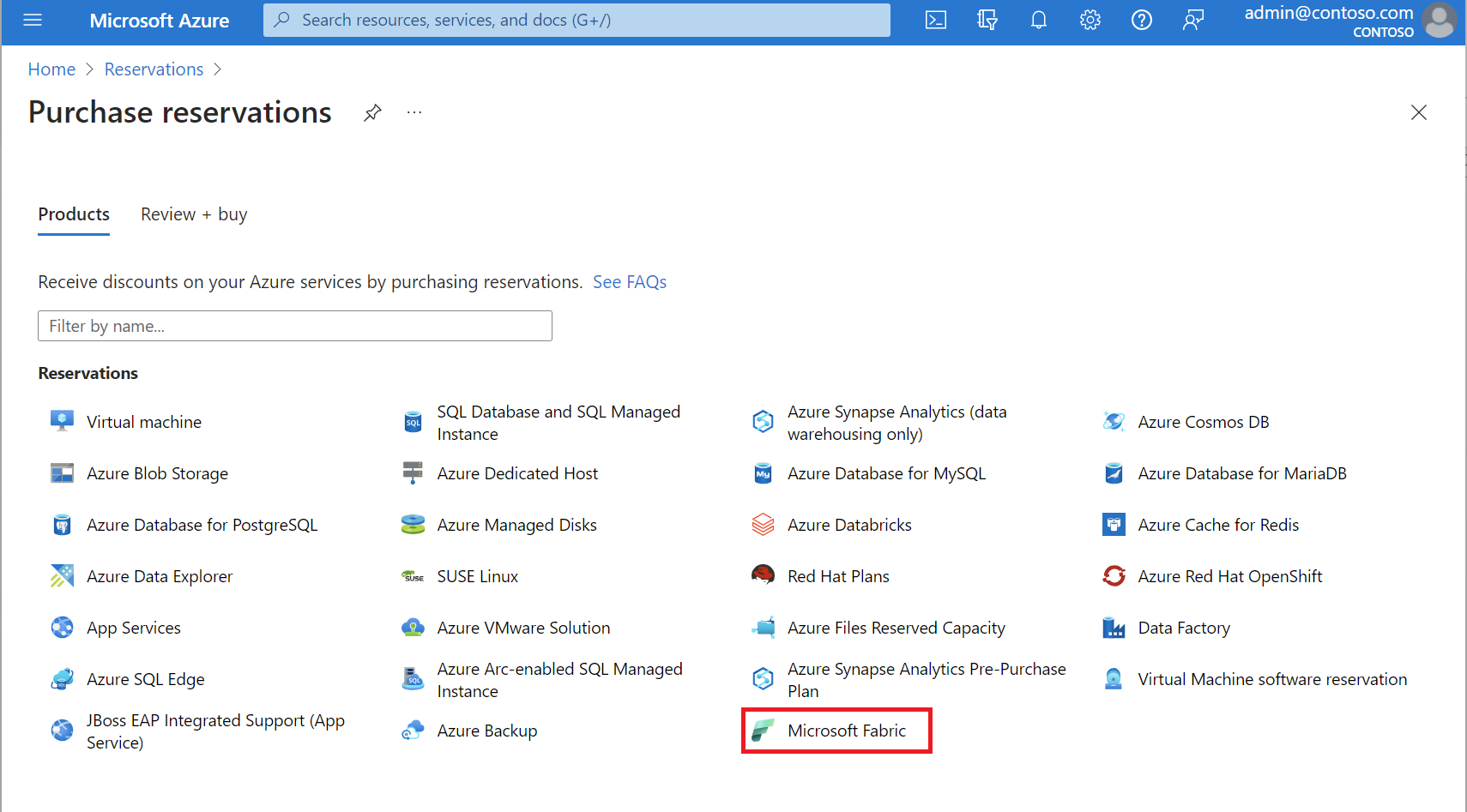
In the Azure portal, go to All Services > Reservations and select Microsoft Fabric from the product catalog.
Make sure you are signed in with an account that has permission to purchase reservations. You need the Reservations Owner or Reservations Buyer role in the subscription.
Source: Microsoft Learn
2. Select the subscription and scope
Once you have defined how much capacity you want to reserve, the next critical step is to correctly choose the subscription and the scope of the reservation.
What is scope?
The scope determines which Azure resources will be able to consume the discount associated with the capacity reservation. It is a fundamental configuration because it depends on it if your reservation will be applied correctly or if you will end up overpaying for resources that do not take advantage of it.
Scope options available in Azure:
- Single resource group: The reservation only applies to resources within a specific resource group. This is the most restrictive option. That is, if you select an F64 capacity for a single user and later want to spread the resources across more users, you will not be able to.
- Single subscription: The reservation applies to all matching resources within a specific subscription. It is a suitable option if you work in a well segmented environment by subscriptions.
- Shared: This is the most flexible option. It applies the discount to all eligible subscriptions within the same billing context (e.g. a tenant or an EA enrollment):
- For Enterprise Agreement customers, the context is the enrollment.
- For Microsoft Customer Agreement contracts, it is the billing profile.
- In Pay-as-you-go, it applies to all subscriptions created by the account administrator.
Important: If you choose shared scope, the reservation will be automatically assigned to the Fabric instances you create, until the number of reserved units is reached. This allows a dynamic distribution and avoids having to manually assign the reservation to each instance.
⚠️ If a subscription is moved out of the original billing context, it loses the right to benefit from the reservation.
- Management group: Applies the discount to all subscriptions that are part of the management group and share the same billing context. Useful for complex corporate environments with hierarchies defined in Azure Management Groups.
3. Choose the region and capacity units (CUs)
Select the Azure region for the reservation. Typically you choose the region in which the Fabric capacity is or will be deployed (more information on choosing the region in the next section).
Next, specify the amount of capacity you want to reserve, measured in capacity units (CUs). You must enter the total CUs you want to reserve.
For example, if you plan to run an F64 capacity (which is 64 CUs total), you must reserve 64 CUs. You can reserve in increments of 1 CU, so there is no problem in exactly matching the planned capacity size.

Source: Microsoft Learn
4. Available payment methods
In principle, Microsoft allows you to choose between two payment methods when making a capacity reservation:
- One-time payment in advance (prepay)
- Monthly payment in installments over 12 months
Both options have the same total cost.
Important: Although Microsoft claims that you can choose the payment method, the one-time payment method is currently not working properly. In practice, Microsoft is only processing monthly payments, even if you try to set up prepay.
5. Confirm and activate the reservation
Finally, check the prices and purchase the reservation. Once purchased, the cost of the reservation will be charged to your subscription (either deducted from any Azure prepayments or billed to your payment method as per regular Azure billing).
If, for example, you have an active F64 in the selected region, it will now be billed at the reservation rate instead of the PAYG rate for the duration of the reservation term. (If you have multiple Fabric capacities or scales beyond the number of CUs reserved, any additional usage beyond the reservation will continue to be billed at the PAYG rate).
💡 Tip: Reservations do not automatically renew by default. After the one-year term, your capacity will revert to the PAYG rate unless you renew or purchase a new reservation. You can enable auto-renew if you want Azure to automatically renew the reservation for another term when it expires. This is useful if you plan to maintain capacity over the long term.
6. Create a Fabric instance
Once you have reserved the capacity (e.g., F2, F4, etc.), the next step is to create the Microsoft Fabric instance that will use that capacity.
This process is not automatic: You must access the Azure portal and, from there, manually create a new Fabric instance, choosing the size corresponding to the capacity you have reserved.
💡 Important: If you do not create this instance, the capacity will remain inactive and you will not be able to start working with Microsoft Fabric.
- More information on Azure Reservations at Microsoft Learn
Summary: How to reserve a capacity in Microsoft Fabric?
To reserve a capacity in Microsoft Fabric from the Azure portal, follow these steps:
Verify that your Azure Plan allows reservations. Ask the wholesaler to enable this option.
Access the Azure portal > All Services > Reservations.
Select "Microsoft Fabric" in the catalog.
Define the number of Capacity Units (CU) and the type of capacity (e.g. F2, F4, F64...).
Choose the Azure region where the capacity will be deployed.
Select the scope: resource pool, subscription or shared.
Decide the payment model: monthly or prepaid (currently only monthly works).
Confirm and purchase the reservation.
Manually create a Fabric instance associated with that capacity.
Save time with this essential guide to Microsoft Fabric
Learn how to better plan your capacities and avoid common mistakes. Includes comparisons, pricing, and key steps.
What is an Instance in Microsoft Fabric?
A Fabric instance is the operating environment that is created within a reserved capacity in Microsoft Fabric. It is the logical structure where services, projects and workspaces are executed. Once the capacity is reserved, the user must manually create an instance to start using Microsoft Fabric with the allocated resources.
Difference between reserving a capacity and creating an instance
When acquiring a capacity in Microsoft Fabric, it is essential to understand that the process consists of two distinct steps:
First, you make the capacity reservation.
That is, you select and confirm the purchase of the capacity you want (for example, an F2 or an F4). This reservation guarantees that you will have the necessary resources within the Microsoft Fabric environment.You must then create the Fabric instance
Once the capacity has been successfully reserved, you can proceed to create the associated instance, specifying the previously reserved size (F2, F4, etc.).Important: Reserving a capacity does not automatically create the Fabric instance. You must complete this second step manually from the Azure portal for the capacity to be available and functional.
Fabric Capacity reservation is non-refundable.
It is important that before confirming the capacity reservation you review the entire process thoroughly and ensure that the reservation settings are correct. Once the reservation is made, there is no refund option, even if you do not use the capacity or you have configured it incorrectly. In this regard, for non-expert users, it is advisable to consult a Microsoft Fabric expert.
Common Mistakes when Reserving a Capacity in Microsoft Fabric
Advice from Bismart's experts
In recent months, Microsoft has experienced a noticeable increase in claims related to booking capacity in Microsoft Fabric. Many of these complaints are due to incorrect or misunderstood configurations, resulting in unexpected charges, wasted resources or limited service usage.
At Bismart, as a Microsoft partner with expertise in Microsoft Fabric, we have accompanied numerous organizations in both the process of acquiring capacities and migrating to Fabric environments.
Thanks to this direct experience, we have identified a number of recurring errors that can be easily avoided with the right information. Below, we share the main problems we have detected and how to solve them.
1. Misconfigured Scope
One of the most common and critical errors in the capacity reservation process is not correctly selecting the scope of the reservation, also known as Scope.
This parameter determines where the reservation discount will be applied within your Azure environment, and directly affects the utilization of the reserved capacity.
Types of Scopes in Azure
As we have seen in a previous section, when you make a capacity reservation, you can select between different scope levels. It is extremely important to choose the right scope for your situation, as the scope of the reservation cannot be changed later.
💡 Bismart recommendation: In most of the business scenarios we have managed, the shared scope ("Shared") offers the most flexibility and ensures better capacity utilization. It allows the reservation to be automatically applied to instances and resources within the billing context without having to make manual adjustments each time a new resource is created.
🛑 Important warning:
If a subscription is moved to another billing context, the reservation will automatically stop applying to it, although it will continue to work for all other subscriptions in the original context.
2. Forgetting to Create an Instance
Many organizations believe that by reserving capacity, the Fabric environment is automatically activated. This is not the case.
Once the reservation is complete, you must manually create a Microsoft Fabric instance from the Azure portal, assigning it the size you have reserved (e.g., F2, F4, F64...).
If the instance is not created, the capacity remains inactive and you will not be able to start working with Microsoft Fabric.
3. Buying more capacity than needed
Reserving higher capacities without real need is one of the most common mistakes. For example, purchasing an F64 when an F32 would be sufficient generates an unnecessary expense, and if the full capacity is not used, the excess units are lost every hour.
No carryover of unused units: If you reserve 64 units and only use 32 for one hour, the other 32 are not carried over to the next hour. They are simply wasted.
Also, remember that reservations are non-refundable.
💡 Bismart recommendation: start with just enough (F32, F48) and scale up if you really need it. Don't buy outright an F64 without justification based on load data.
4. Taking no advantage discounts
Case studies of how the reserve is applied:
- Example 1: Reservation equal to usage.
You buy 64 CUs and implement an F64 → You pay only the reserved price. Everything is used efficiently. - Example 2: Reserve greater than usage.
You buy 64 CUs but use only one F32 → The remaining 32 units are lost every hour if not used. - Example 3: Reserve less than usage
You buy 64 CUs and deploy an F128 → 64 units are billed at reserved rate and 64 at usage rate. You have a cost overrun. - Example 4: Reservation used by several instances
You buy 64 CUs and deploy two F32 → Full discount is applied to both. This is a good practice.
5. Misunderstanding Smoothing
What is smoothing and how does it work?
Smoothing in Microsoft Fabric is a feature that distributes capacity consumption over time, allowing resources to be sized according to average usage instead of the maximum peak.
This means that, instead of calculating the capacity needed based on the time of peak load, you can plan based on a more constant usage.
- In interactive jobs, smoothing applies over 5-minute intervals.
- In background or scheduled processes, it is spread over 24 hours.
Smoothing does not affect performance or runtime, only the way resource usage is measured.
Practical example:
If you buy 2 CUs and at a point in time consume 4 CUs for a peak, smoothing can absorb the excess, spreading it over the 24 hours, as long as the average load does not exceed the contracted CUs.
But beware: smoothing is not a substitute for proper configuration. It does not prevent excess usage charges if limits are consistently exceeded.
6. Thinking that you can cancel a reservation
Once a reservation has been made, it cannot be canceled or refunded, even if you are not using it or it has been configured incorrectly.
At Bismart we have seen cases of customers who, after making mistakes in the configuration, have taken significant losses simply because they did not understand how the system works.
Are There 3-Year Reserves in Microsoft Fabric? What We Know So Far
Current situation (July 2025)
As of mid-2025, Microsoft only allows Fabric capacities to be reserved with annual commitment from the Azure portal. While 3-year reservations are not yet publicly available, they are expected to be enabled in the future with higher discounts similar to other Azure services (up to 60% savings). Enterprise contract companies can consult with their representative to explore customized options.
ℹ️ Updated July 2025 - Microsoft has not yet enabled 3-year reservations, but may launch soon.
Currently, Microsoft only allows you to reserve Fabric capacities with a 1-year commitment. On the Azure portal, the 3-year reservation option is disabled, reflecting that, for now, Microsoft's strategy is focused exclusively on annual contracts for these types of capacities.
Future possibilities and estimated savings
Most likely yes. Microsoft could introduce 3-year capacity reservations in the future, as it already does with many other Azure services (Virtual Machine Reserved Instances, Azure SQL Database and Azure SQL Managed Instance, Azure Cosmos DB, Azure Blob Storage and Azure Data Lake Storage Gen2 and others).
If Microsoft eventuallyenables 3-year reservations for Fabric in the future, it is reasonable to anticipate that the discounts will be even more significant.
Following Azure's usual economic model, a Fabric capacity reservation with a 3-year commitment could represent savings of 50% to 60% compared to pay-as-you-go (PAYG) pricing.
Which Azure Region Is the Best for Your Microsoft Fabric Capacity? Our Technical Opinion
Why does Datacenter region matter?
One of the most impactful - and often overlooked - aspects of deploying Microsoft Fabric capacities the choice of datacenter or Azure region in which to host them. This decision is not just a matter of location or price: it can directly condition what services you will be able to use and how they will perform.
At Bismart we have worked on multiple projects of migration and deployment of capacities in Fabric, and one of the first things we always discuss with the client is:
What datacenter is your Power BI Service in?
Why? Because certain key functionalities, such as Synapse Link, don't work across regions, only within the same Azure datacenter. If you reserve capacity in a datacenter other than the one where you have Power BI, it is very possible that some integrations will stop working without a viable technical solution.
Which European datacenters are the best?
Western Europe (Netherlands)
The most complete datacenter in the region: very high capacity, availability of all services and guaranteed performance. However, it is also by far the most expensive.
If your services are already deployed here and there are no budget constraints, it is a safe choice.
North Europe (Ireland)
Cheaper, but also limited in terms of available services and capacity. While it can be useful in basic scenarios or testing, we do not recommend it for demanding production environments.
Central Sweden
This is currently the option we recommend at Bismart. It has better service coverage than North Europe, with a much more competitive cost than Western Europe. Many of the deployments we are doing now are going to this datacenter because of its balance between functionality and cost.
Spain Central (Madrid)
Microsoft announced its commissioning for April 2025, but testing is not yet complete. This datacenter is expected to offer the full range of Microsoft services, including Fabric.
The price will be somewhat higher than in Sweden or Ireland, but much lower than Western Europe, and with a key advantage for Spanish companies: much lower latency, having the data physically hosted in Spain.
Once fully operational, it will be one of the best options for organizations based in Spain.
Which option do we at Bismart recommend to our customers?
At Bismart, after evaluating real customer scenarios, service availability, technical compatibilities and costs, we recommend deploying Microsoft Fabric capacities in the Azure datacenter "Central Sweden" (Central Sweden), unless there is a justified reason to use another region.
Our advice, based on real experience:
-
Before reserving Microsoft Fabric capacity, check which datacenter your Power BI Service is in. If they are in different regions, some functionality will not work. It's not optional, it's critical.
-
If you are starting from scratch, Central Sweden is currently our first choice.
-
If you are in Spain, keep an eye on Spain Central. When it's ready, it will most likely be the most cost-performance-location optimal choice.
-
Avoid choosing the region on price alone without evaluating technical dependencies. A poorly located reserve can lead to functional limitations and subsequent redesign costs.
Conclusion: How to Configure Your Fabric Capacity Efficiently
Reserving capacity in Microsoft Fabric is a strategic decision that can bring great benefits in terms of performance, stability and savings, provided it is configured correctly. Choosing the right region, right-sizing resources and understanding how reservations are applied are critical steps to avoid cost overruns and ensure ROI.
At Bismart, we have spent months accompanying companies in the transition to Fabric and have gathered key learnings that make a difference. This guide captures that experience to help you make informed decisions right from the start.
If you need personalized advice or are considering a migration to Microsoft Fabric, our team is at your disposal to help you plan and execute the process with guarantees.